Control the camera
without walking over.
Your iPhone stands behind the baseline, you sit on the bench. With the remote control you start and stop the recording from a second device and see live what the camera sees.
You'll find the setup in the app's Play tab under Remote control.
In four steps
How to set up the remote control
Step 01
Set up the remote control
On the iPhone that films, open the Play tab and tap Set up under Remote control.
Where the iPhone goes: camera guide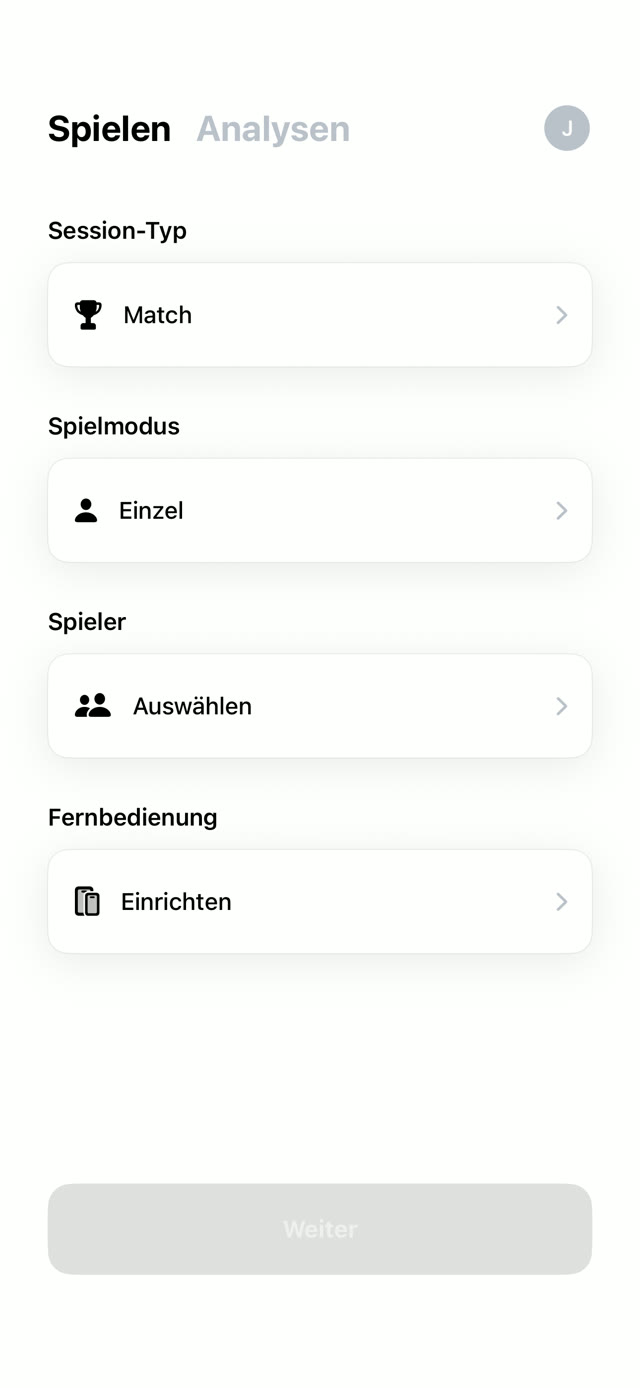
Step 02
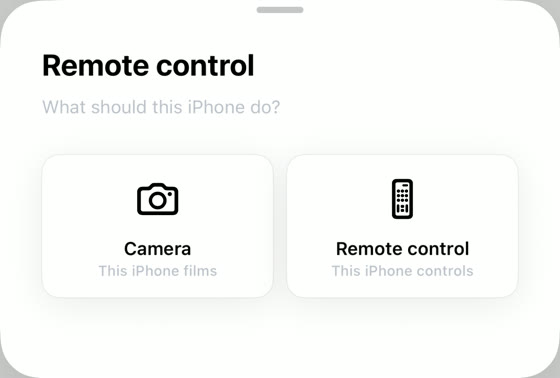
Pick a role
Choose Camera, because this iPhone films your game. The second device becomes the remote in a moment.
Step 03
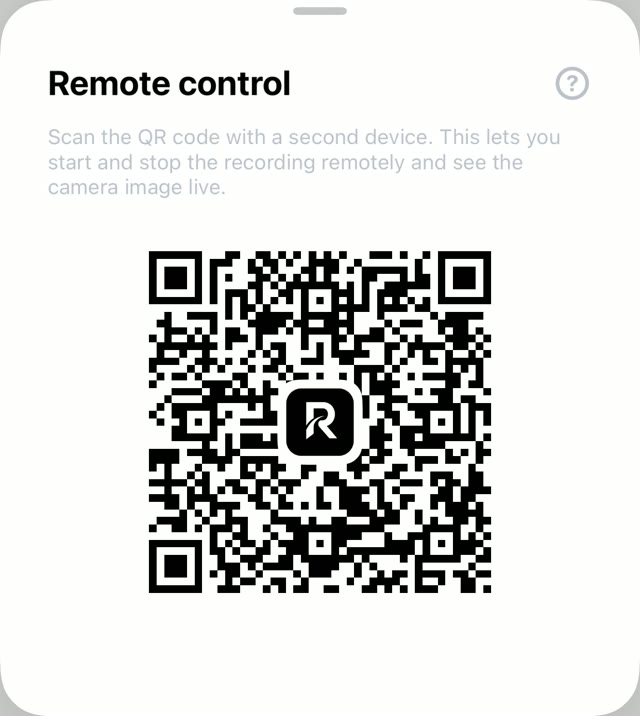
Scan the QR code
A QR code appears on the camera iPhone. Scan it with your second device: in Raqet AI via the Remote control role, or entirely without the app using the normal camera, and the browser opens by itself.
Step 04
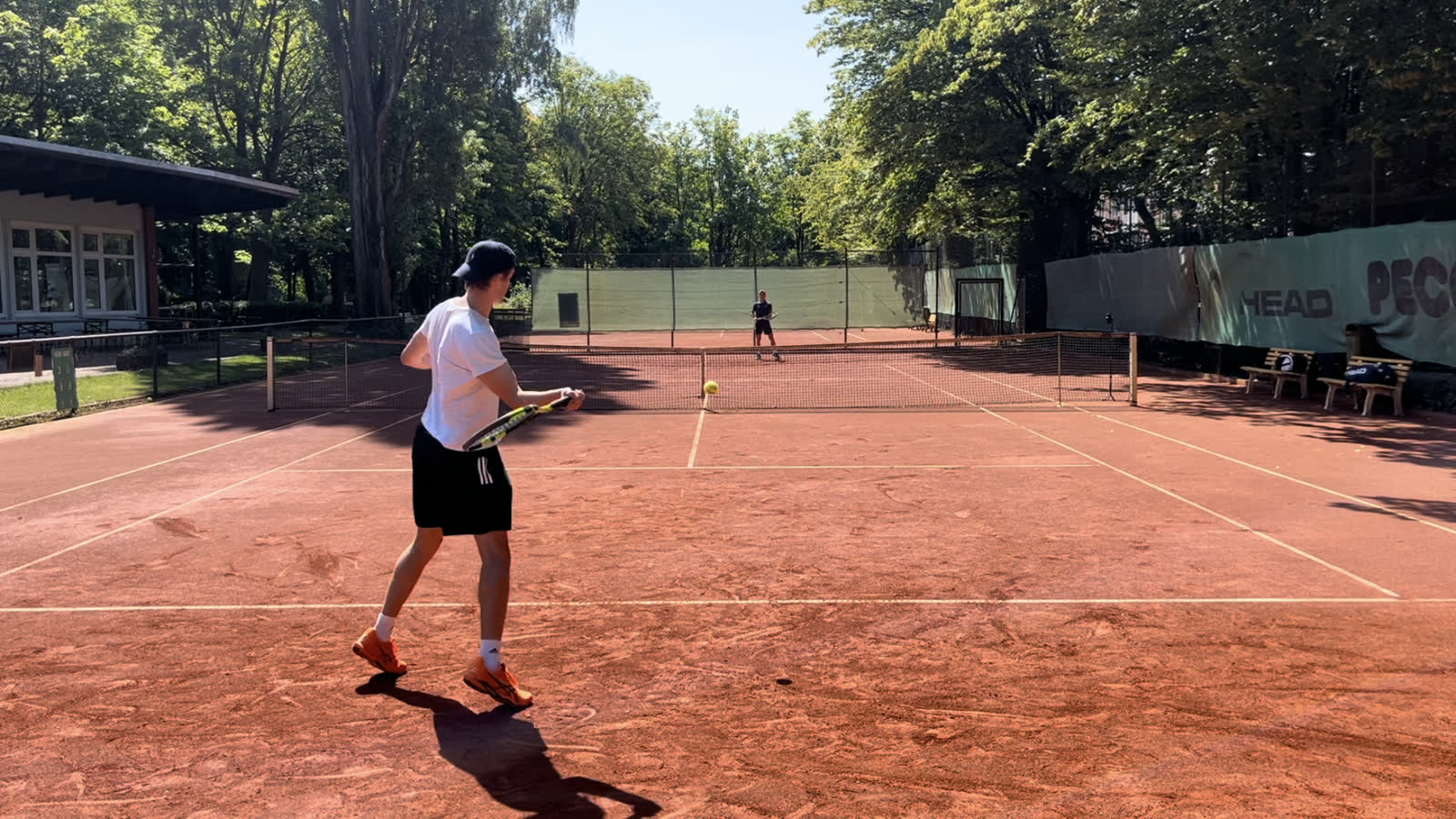
Control from the bench
Once the devices are connected you see the camera image live on the remote. You start and stop the recording, zoom with two fingers and switch the resolution without getting up.
Good to know
Works with almost any device
This is how the connection between camera and second device comes together.
iPhone and iPad with Raqet AI
No shared network needed. The connection runs directly from device to device, Wi-Fi just has to be switched on on both.
All other devices
Mac or Android work through the browser too. Connect both devices to the same Wi-Fi or to the iPhone's hotspot and scan the code with the camera.
Allow it once
The first time, allow access to the local network so the devices can find each other.
Questions & answers
Frequently asked questions
Yes, it is part of the free plan. Only recording in 4K belongs to Pro, HD at 60 fps you control from the bench for free.
No. The connection runs on the local network or directly from device to device. Neither device needs internet.
As far as Wi-Fi. From the bench to the iPhone behind the baseline is no problem.
The recording runs on the camera iPhone, not on the second device. Just reconnect by scanning the QR code again.
The second device shows the live image and controls the recording. The analysis runs on the camera iPhone, and that is where you find the match in your library after the game.
Keep reading
Related topics
Connected in seconds.
Download Raqet AI for free and control your next recording right from the bench.